Publish blog posts to WordPress
Connect your WordPress site with an application password or a WordPress.com sign-in, then send your published blog posts to it as posts or drafts.
- 1In Marcomm, go to Settings → Integrations → WordPress. Only workspace admins can connect it.
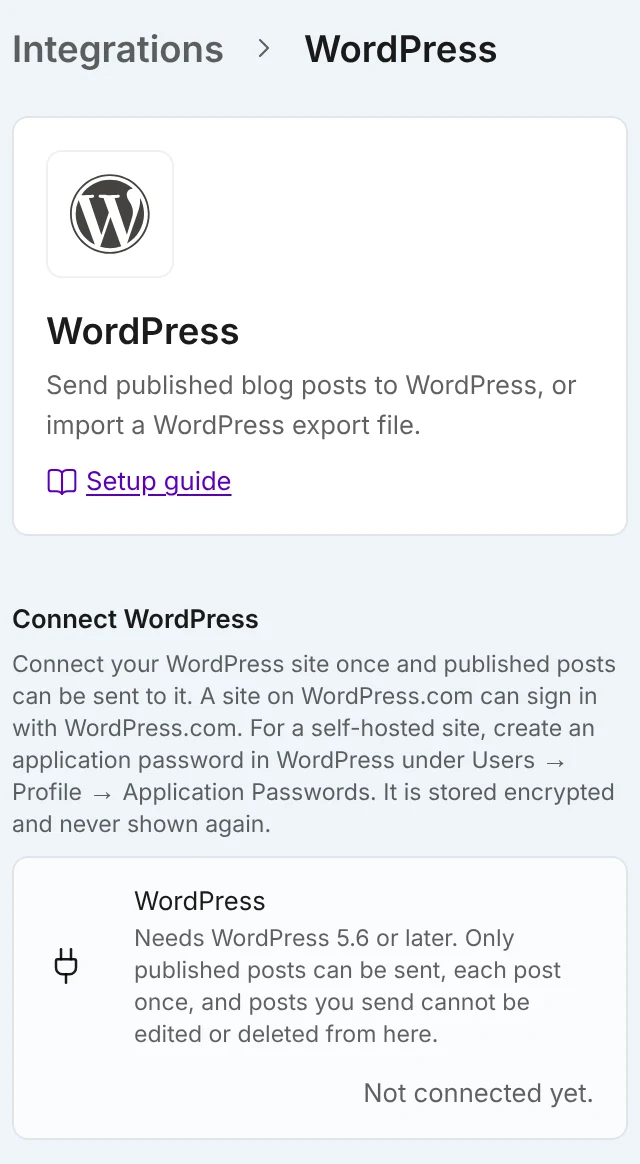
Enter the site address, username and application password, or connect with WordPress.com. - 2In WordPress, create an application password under Users → Profile → Application Passwords.
- 3Enter Site address (https), WordPress username and Application password, then select Connect. For a site hosted on WordPress.com, select Connect with WordPress.com instead and choose the site.
- 4Open a published blog post in the editor, choose Send to in the ⋯ menu, then WordPress.
- 5Check Visibility and select Publish. When it is done, select Open on WordPress to see the post.
Set Default visibility when publishing on the same settings page. The dialog selects it first, and you can change it for each post.
Marcomm sends the title, subtitle, excerpt and body, with headings, lists, quotes and links. Images, tables and embeds are skipped. WordPress has no field for the original page, so Marcomm adds a line at the end, “Originally published at”, with a link to your blog post. The line is added only when your Marcomm blog is public.
You can send a post as Public or Draft. An application password needs WordPress 5.6 or later, a user who can write posts and a site with the REST API turned on. Some hosts show servers a JavaScript check page, which blocks the connection. If a WordPress.com connection stops working, select Reconnect with WordPress.com.
Only published posts appear in the menu, and only people with full access to the blog can send them. The first time, the post is added to WordPress. Sending it again updates that same post, so a later edit in Marcomm reaches WordPress without a copy. Marcomm cannot delete the post there, and a post that is already public cannot be set back to a draft from here. The dialog also shows Open on WordPress.
The connection belongs to the workspace, and only admins can connect, replace or disconnect it. Saved access is stored encrypted and never shown again. After Disconnect, posts already on WordPress stay there, but Marcomm forgets which posts it sent, so sending one again makes a second copy.
FAQs
Yes. Importing a WordPress export (WXR) file is a separate feature in the blog settings, and each post keeps its address (slug).
An admin selects Disconnect on Settings → Integrations → WordPress. Posts already on WordPress stay there.