Connect Google Chat to Marcomm
Get instant alerts, approval requests and the digest in a Google Chat space, including a private space that only you are in.
- 1In Google Chat, open the space that should receive the messages. For your own private chat, create a space and keep Private under access, with no other members.
- 2Select the space name at the top, then Apps & integrations, then Webhooks, and select Add webhooks.
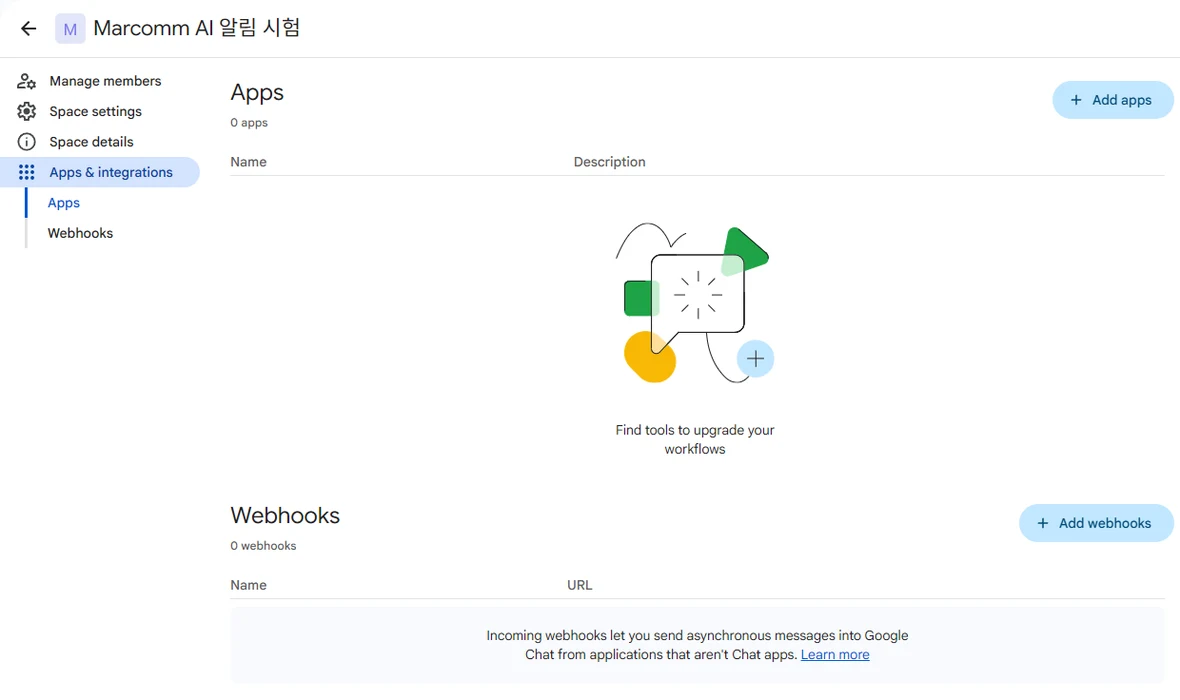
Space name → Apps & integrations → Webhooks. - 3Enter a name such as Marcomm AI and select Save. Copy the webhook URL that appears next to it.
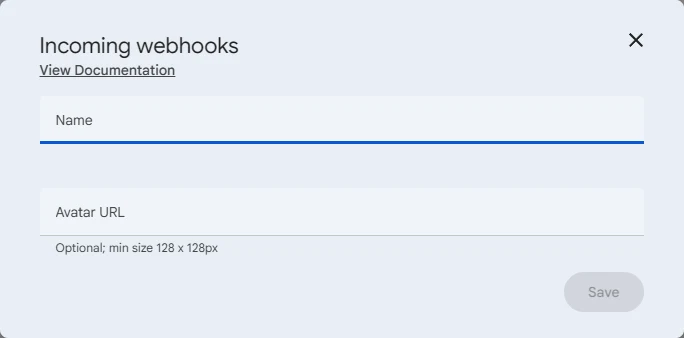
Name the webhook and save it. - 4In Marcomm, go to Settings → API → Webhooks, choose Google Chat as the type, enter a name, paste the URL under Webhook URL and select Add.
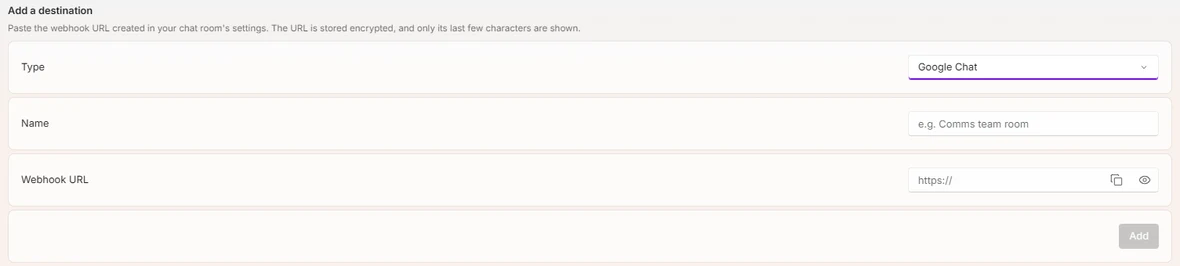
Settings → API → Webhooks. - 5Select Send a test message. It arrives in the space from the webhook you created.
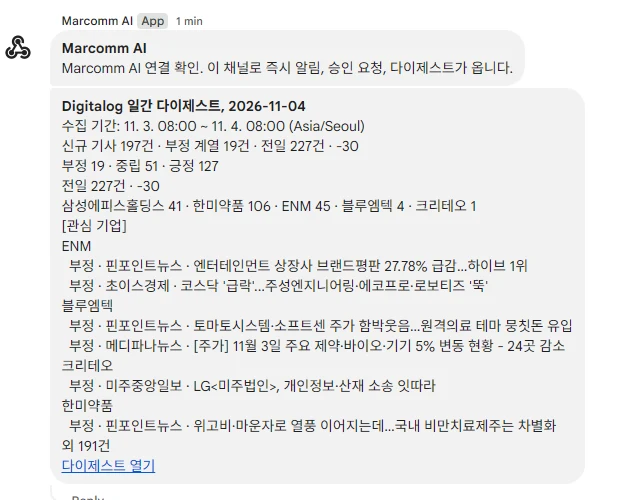
The message arrives in the space. - 6To receive messages in a shared space and in your private space, create one webhook in each and add both as destinations.
Anyone who has the webhook URL can post to that space, so paste it only into Marcomm.
Marcomm stores the webhook URL encrypted and shows only its last few characters. It is deleted when you remove the destination or delete the workspace.
Google Chat receives only what a message shows, such as an article headline, a press release title or the details of an approval request. Approval requests link back to Marcomm, where the decision is made.
FAQs
- Can I get messages in a direct message?
- Google Chat webhooks work only in spaces. For a private chat, create a space with only yourself in it and add its webhook.
- I do not see Apps & integrations or Webhooks.
- Your Google Workspace administrator may have turned webhooks off. Ask the administrator to allow incoming webhooks for your organization.