Connect LINE WORKS to Marcomm
Get instant alerts, approval requests and the digest from a LINE WORKS bot, in a 1:1 chat or in a chat room.
- 1In the LINE WORKS Developer Console, open API → ClientApp and add an app with the bot scope.
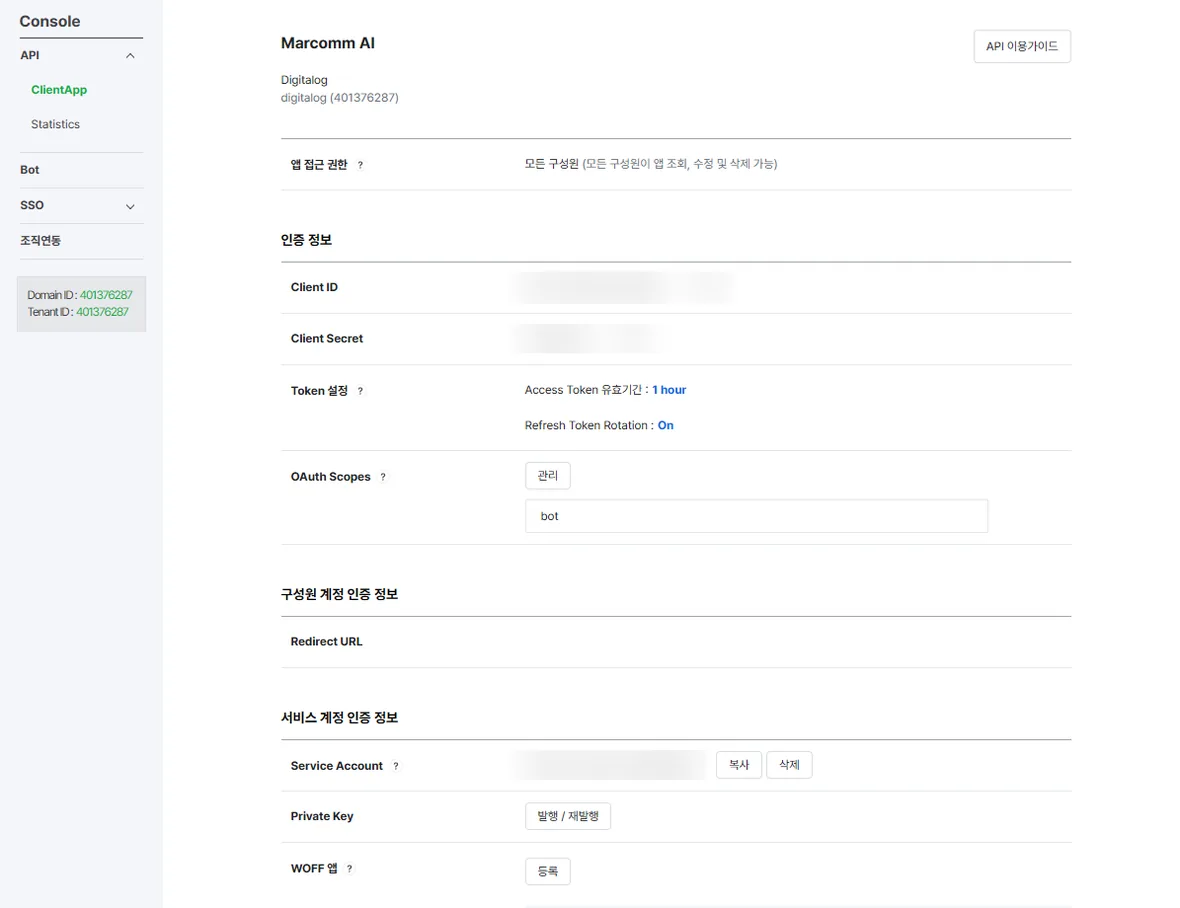
The app with the bot scope. Keep the secret and the private key private. - 2Copy the Client ID and Client Secret. Under Service Account, issue an account, then select Issue / Reissue next to Private Key and download the .key file.
- 3Open Bot, register a bot for the app and note its Bot ID, a number. Make the bot available to the people who should receive messages.
- 4In Marcomm, go to Settings → Integrations → LINE WORKS, enter a name, the Bot ID and the recipient, then the Client ID, Client Secret, service account and the contents of the .key file, and select Add. The recipient is a member ID (id@company) for a 1:1 chat, or the channel ID of a chat room the bot has joined.
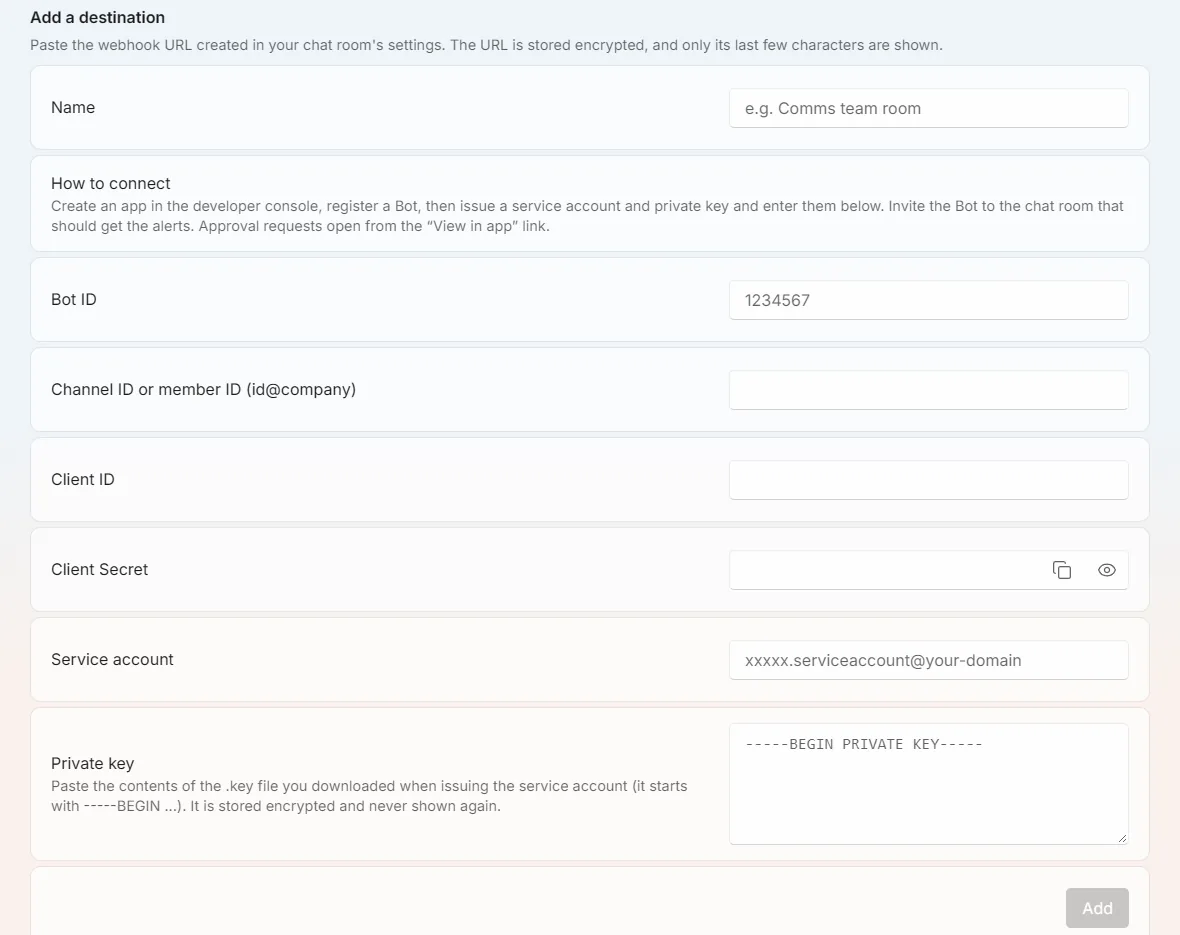
Settings → Integrations → LINE WORKS. - 5Select Send a test message. It arrives from the bot in that chat.
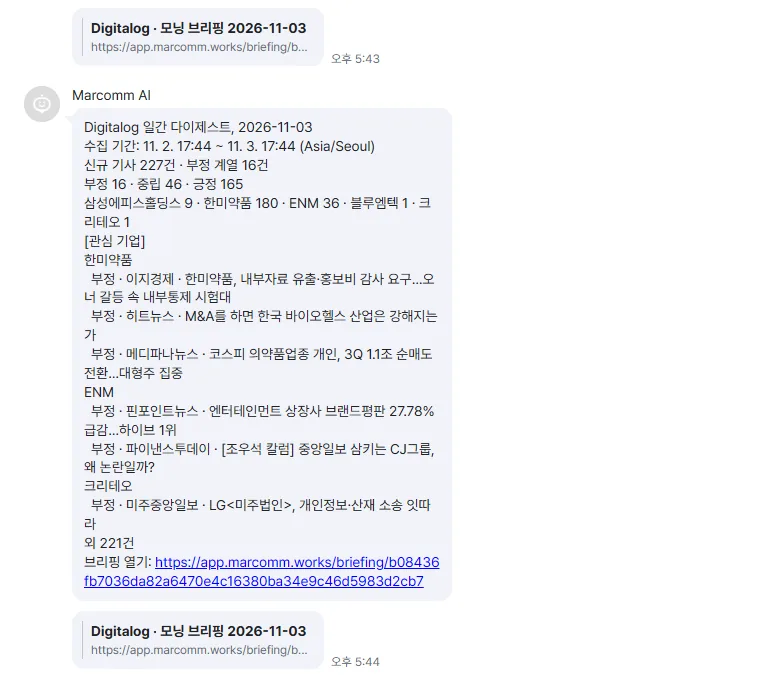
The digest arrives from the bot, with the period it covers. - 6To receive in a 1:1 chat and in a room, add each as its own destination with the same credentials.
The member ID is the one shown in the LINE WORKS admin console (id@company), not the sign-in email.
Marcomm stores the Client Secret and the private key encrypted and never shows them again. They are deleted when you remove the destination or delete the workspace.
LINE WORKS receives only what a message shows, such as an article headline, a press release title or the details of an approval request. Approval requests link back to Marcomm, where the decision is made.
FAQs
- Can I get messages in a 1:1 chat and in a room?
- Yes. Add one destination with a member ID for the 1:1 chat and another with the channel ID for the room.
- Where do I find the member ID?
- In the LINE WORKS admin console, in the member's details. It looks like id@company and is not the sign-in email.