Connect Make with the HTTP module
The Marcomm AI app for Make is in review. Until it is approved, call the Marcomm AI API from a Make scenario with the HTTP module and a personal API key.
- 1In Marcomm, go to Settings → Integrations → Make to see the status and the values you need.
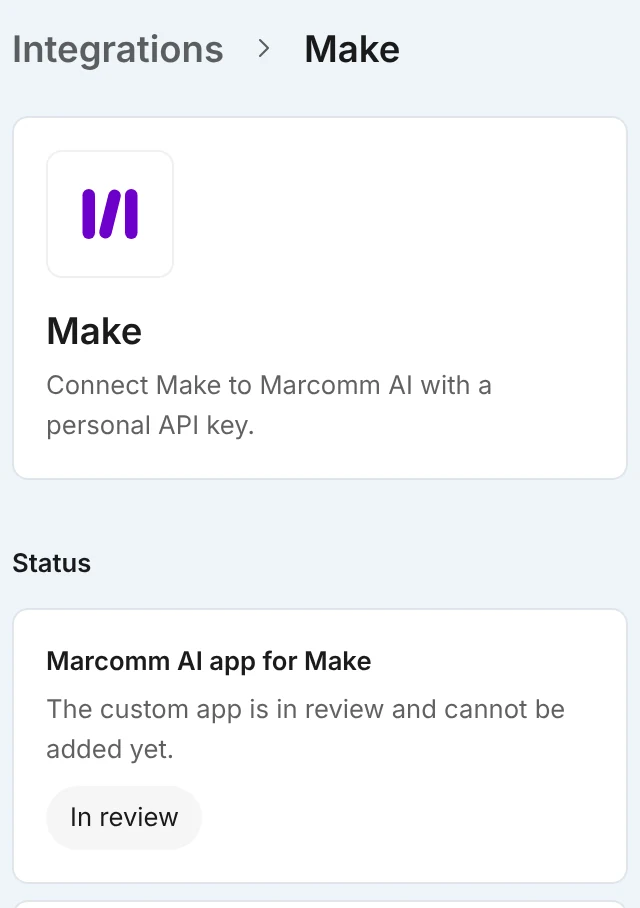
The Make page shows the current status, the steps, the values to copy and whether API access is approved for this workspace. - 2Open Settings → API. If the workspace has no API access yet, an owner or admin fills in Apply for API access and selects Submit application.
- 3After approval, open Create a key, choose Personal key, tick the Scopes you need and select Create key. Copy the key, because it is shown only once.
- 4In a Make scenario, add the HTTP module and choose Make a request.
- 5Enter an endpoint from the developer documentation under
https://marcomm.works/api/v1, and add the headerAuthorizationwithBearerfollowed by your key.
Start with GET /me to check the key before you build the rest of the scenario.
The Marcomm AI app for Make is in review and cannot be added yet. Once it is approved, its Make an API call module calls any endpoint in the API reference with the same personal key. Until then the HTTP module does the same work. Marcomm AI events can also go to a Make webhook address that you add on the Webhooks tab in Settings → API.
Scopes decide what a key can do. Content (content) reads press releases, blog posts and press events, Write content (content:write) creates and edits drafts, Publish and send (distribution) publishes and sends email, and Approvals (approvals) covers approval steps. The last three work only with a Personal key, because the action is recorded under the person who created the key. A Workspace key can only read, and every key acts with the role and permissions of its creator.
Publishing and sending cannot be undone. The API runs them only when the request has confirm: true or an Idempotency-Key header, and it publishes nothing and answers 409 while approval is still required or the item is scheduled or under embargo. A retry with the same Idempotency-Key and the same request returns the first result for 24 hours instead of running again. In the HTTP module, add the Idempotency-Key header yourself to every write.
The API is available on the Team plan and above. The Marcomm AI team reviews each application, and keys work only after approval. A key can use only the scopes approved for the workspace, and each person can have up to 10 keys. By default a workspace can make 60 requests per minute and 10,000 per day; above that the API answers 429 with a Retry-After header. To raise the limits, use Need higher limits? in Settings → API. To disconnect Make, select Revoke next to the key; systems using it lose access right away.
FAQs
Call
GET https://marcomm.works/api/v1/mewith the headerAuthorization: Bearerfollowed by your key. It works with any approved key whatever its scopes, and returns the workspace, the key name and its scopes.A key does not record which service uses it, so Marcomm does not mark the Make card as connected. Settings → API shows when each key was last used.
Enter
https://marcomm.works/api/v1followed by a path from the developer documentation, for example/press-releasesto list press releases.