Create Teams meeting links for press events
Connect your Microsoft account once, then create a Teams link for a press event with one click. The link goes into the invitation and the calendar entry.
- 1In Marcomm, go to Settings → Integrations → Microsoft Teams. In the Microsoft Teams Meetings section, select Connect.
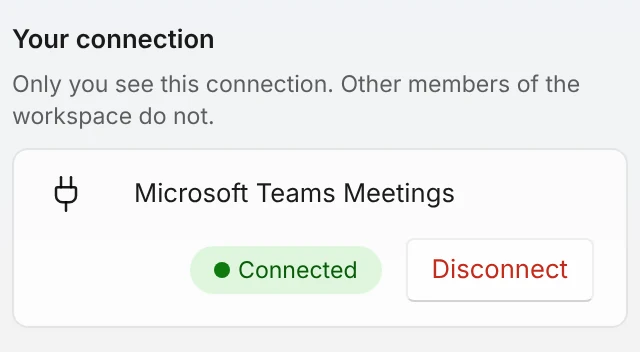
Once connected, the row shows Connected and a Disconnect button. Only you see this connection. - 2Sign in to your Microsoft account and select Accept on the consent screen.
- 3Open a press event and go to the Online meeting link field.
- 4Select Create Teams link. Marcomm creates an online meeting with the event title and its start and end time.
- 5The link fills in the field and is added to the invitation and the calendar entry. If the field already has a link, Marcomm asks before replacing it.
If you have not connected yet, the button under the field reads Connect Teams and opens the integration page.
Marcomm AI asks only to read and create your online meetings, and to read your account email. It does not read your calendar, and it does not store the meetings it creates.
Each person connects their own account, and only that person sees the connection. To stop, select Disconnect on the same page. Links already saved in your press events stay as they are.
The chat messages set up higher on the same page (alerts, approval requests, digest) are separate. You can use meeting links without them.
FAQs
Yes. The Online meeting link field also takes a Teams, Google Meet or Zoom link you paste yourself.
Teams meetings can only be created with a work or school (Microsoft 365) account. Connecting a personal account such as hotmail or outlook.com won’t create meetings.