Connect Chatwork to Marcomm
Get instant alerts, approval requests and the morning briefing in a Chatwork group chat or in My Chat.
- 1In Chatwork, open Service integration → API → API token and copy your token. Messages are posted under the name of the person who owns the token.
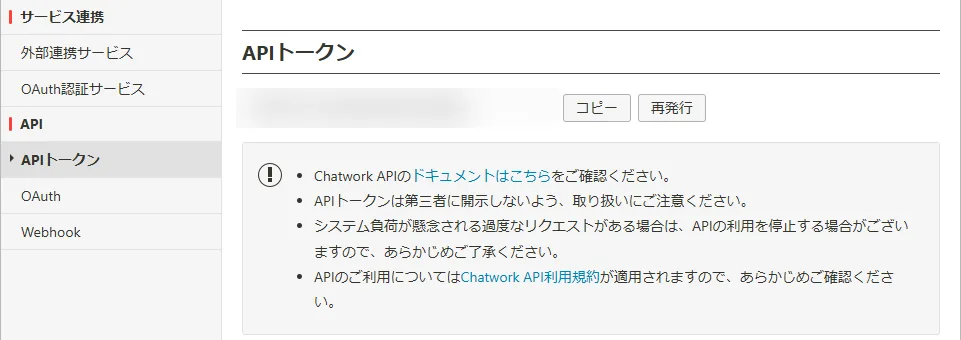
Copy your API token. Never share it. - 2Open the chat that should receive the messages. The number after rid in the address is the room ID. For your own 1:1 chat, open My Chat and use its number. It is not your account ID.
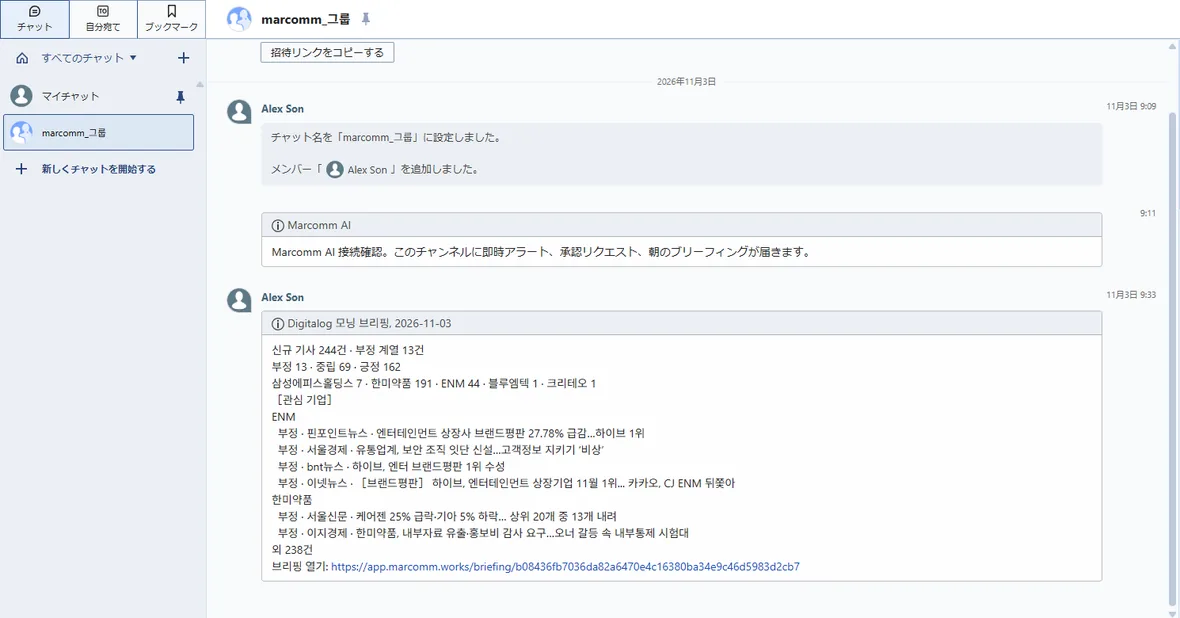
A group chat. Its room ID is the number after rid in the address. - 3In Marcomm, go to Settings → Integrations → Chatwork, enter a name, the room ID and the token, then select Add.
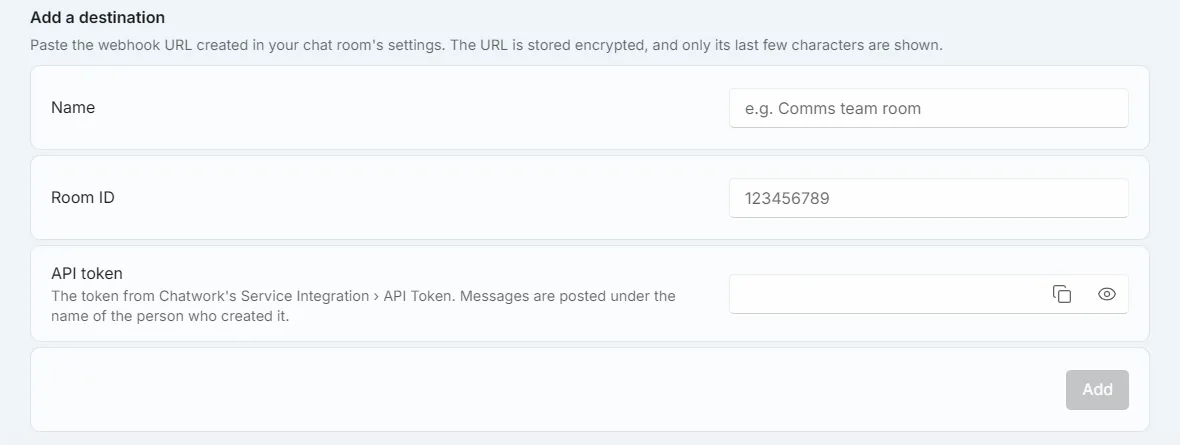
Settings → Integrations → Chatwork. - 4Select Send a test message. The message and the morning briefing arrive in the chat.
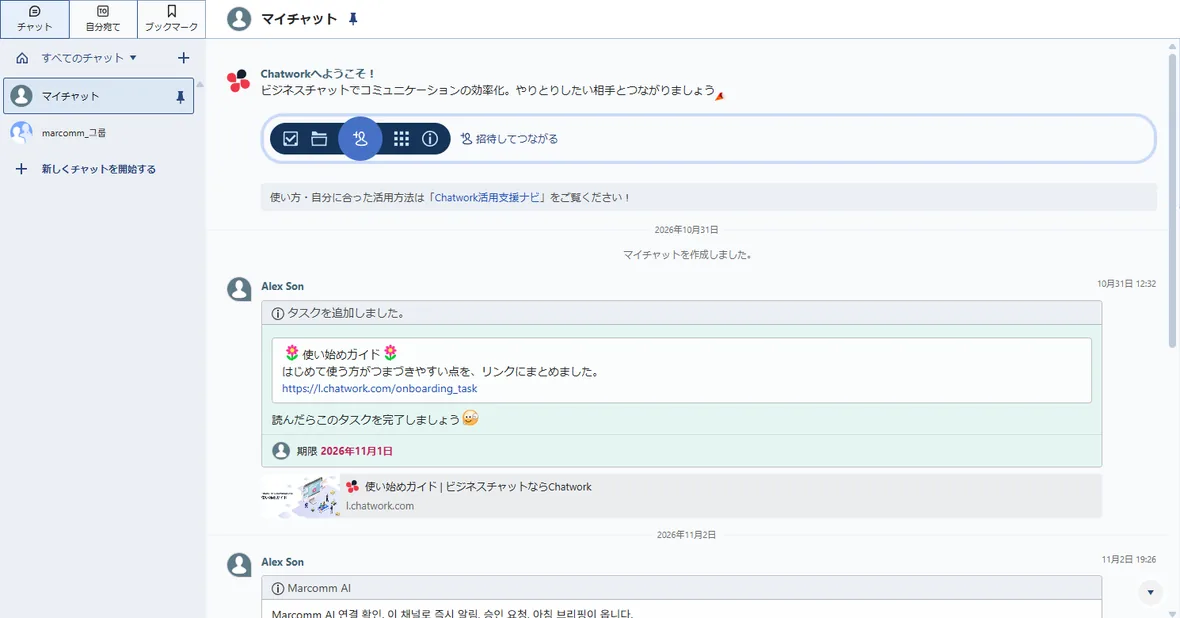
My Chat works the same way, with its own room ID. - 5To receive in both a group chat and My Chat, add each room as its own destination. The same token works for both.
Messages appear under the name of the token's owner. Use a token from an account that your team recognizes.
Marcomm stores the token encrypted and never shows it again. It is deleted when you remove the destination or delete the workspace.
Chatwork receives only what a message shows, such as an article headline, a press release title or the details of an approval request. Approval requests link back to Marcomm, where the decision is made.
FAQs
- Where do I find the room ID?
- Open the chat in Chatwork and read the number after rid in the address bar.
- Is My Chat's room ID my account ID?
- No. My Chat has its own room ID. Open My Chat and read the number after rid.