Import images from Google Drive into Marcomm
Connect your Google Drive account, then pick an image from it and copy it into the media library while you write a press release or blog post.
- 1In Marcomm, go to Settings → Integrations → Google Drive and select Connect.
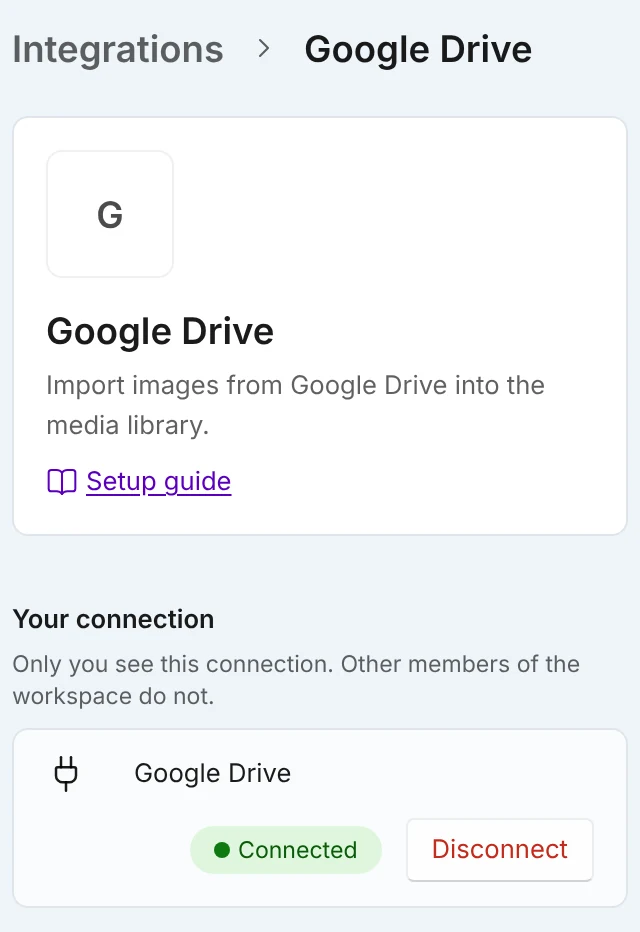
Once connected, the row shows Connected and a Disconnect button. Only you see this connection. - 2Sign in to Google Drive and select Allow.
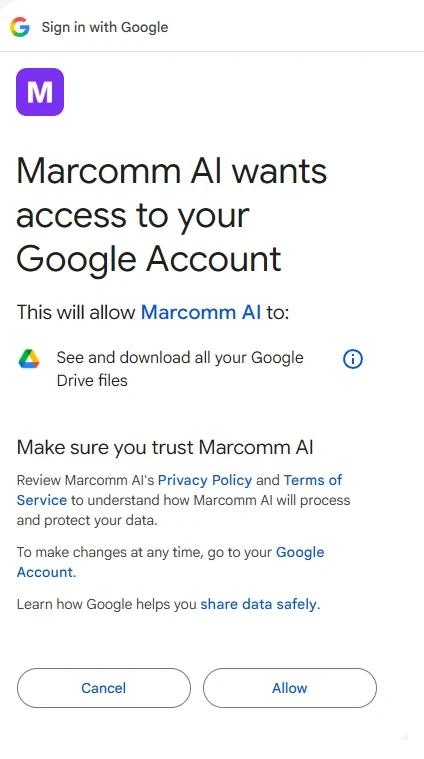
Google asks for access to the files you pick with this app. Select Allow. - 3In the press release or blog post editor, open the image picker. In Choose an image, select the Cloud tab.
- 4Under Storage to import from, choose Google Drive, select Pick from Google Drive and choose an image.
- 5Marcomm copies the image into the media library and uses it where you were working.
If Google Drive is not connected yet, the Cloud tab shows Connect in Integrations, which opens this page.
Marcomm AI asks only for access to the Google Drive files you pick in Google’s file picker. It cannot browse the rest of your Drive, and it never uploads, changes or deletes anything in Google Drive.
Only folders and images are listed, and each folder shows its first 100 items. One image can be up to 10 MB, and the copy counts toward your workspace storage like any upload.
Each person connects their own account, and only that person sees the connection. To stop, select Disconnect on the same page. Images already copied stay in the media library.
FAQs
No. Only the image you pick is copied, once. Later changes in Google Drive do not reach the copy in the media library.
Wherever Marcomm opens Choose an image, for example in the press release and blog post editors.