Import from and send to Google Docs and Notion
Bring a Google Doc or a Notion page into Marcomm as a new press release or blog draft, or send a draft out to Google Docs or Notion.
- 1Go to Settings → Integrations → Google Docs and select Connect.
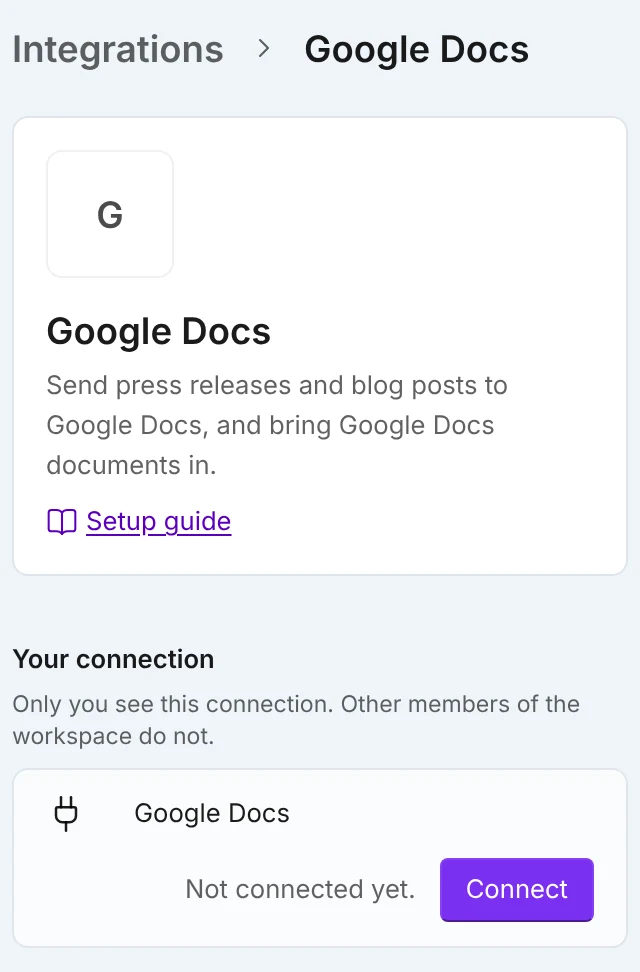
Settings → Integrations → Google Docs. - 2For Notion, go to Settings → Integrations → Notion and select Connect next to Notion (Notion Databases is for the calendar). In Notion, share the pages you want to import with Marcomm AI.
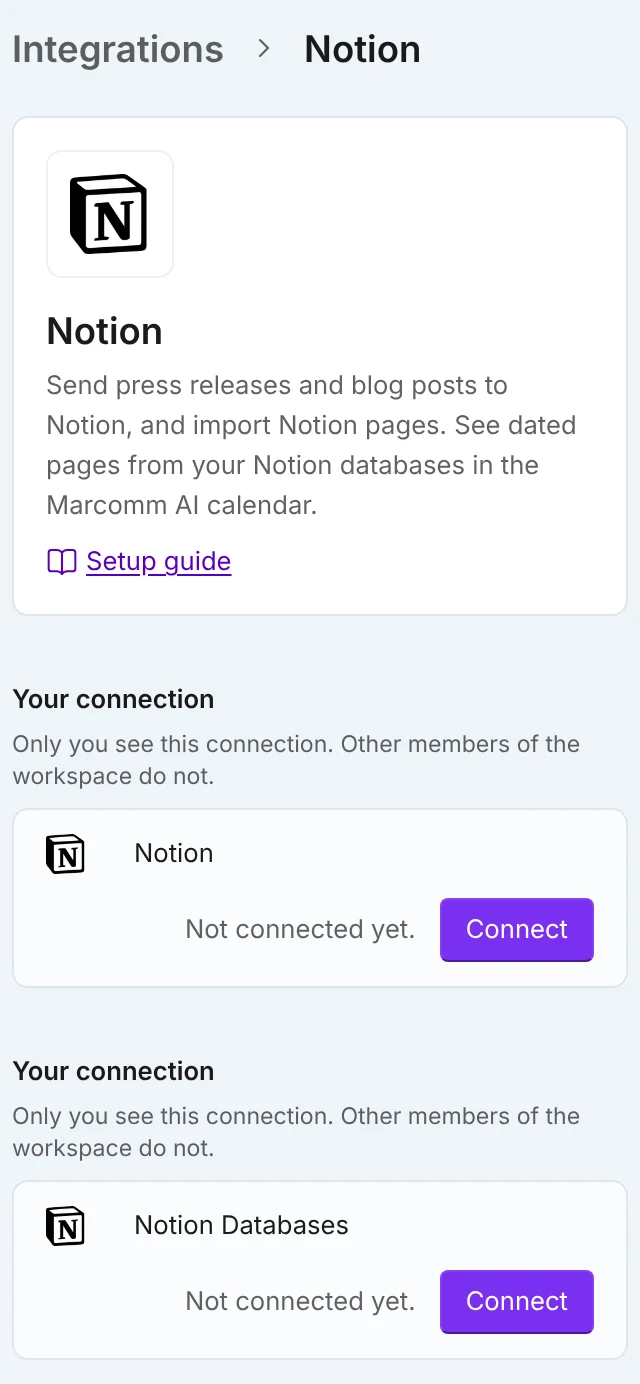
Connect Notion for import and send. Notion Databases is for the calendar. - 3In the press release or blog post list, select Import and choose Import from Google Docs or Import from Notion.
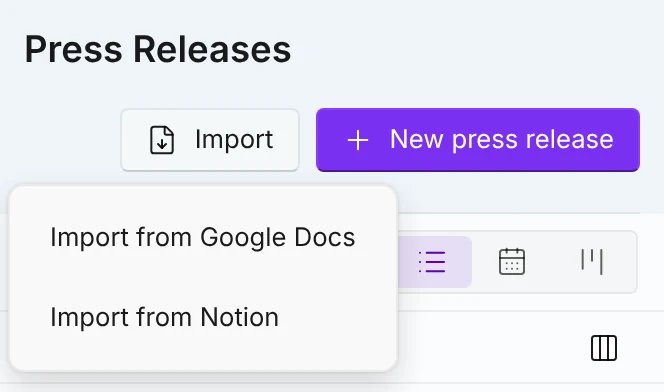
The Import menu in the list. - 4Pick the document. For Notion, the list shows the pages you shared with Marcomm AI.
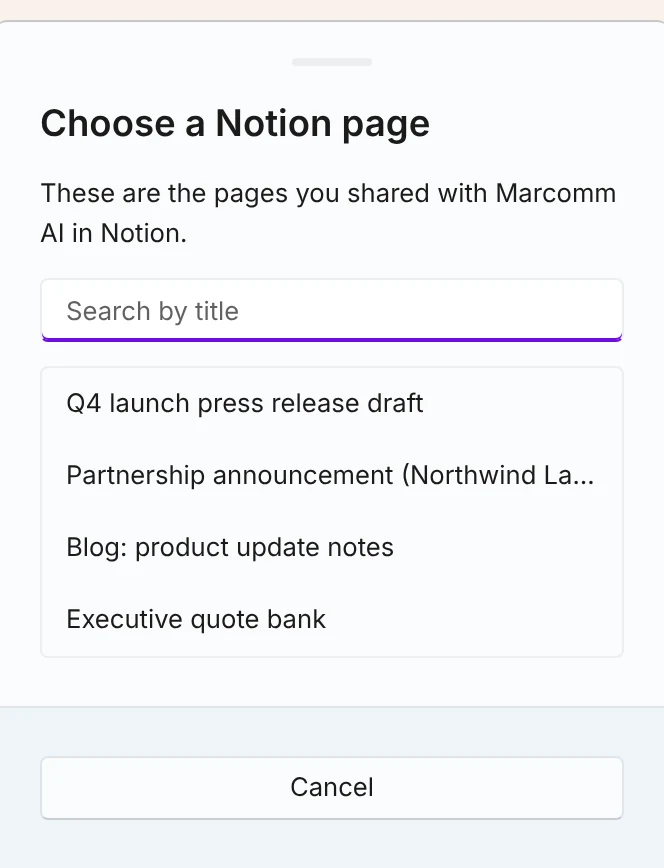
Only pages shared with Marcomm AI are listed. - 5Marcomm creates a new draft from it and opens it in the editor.
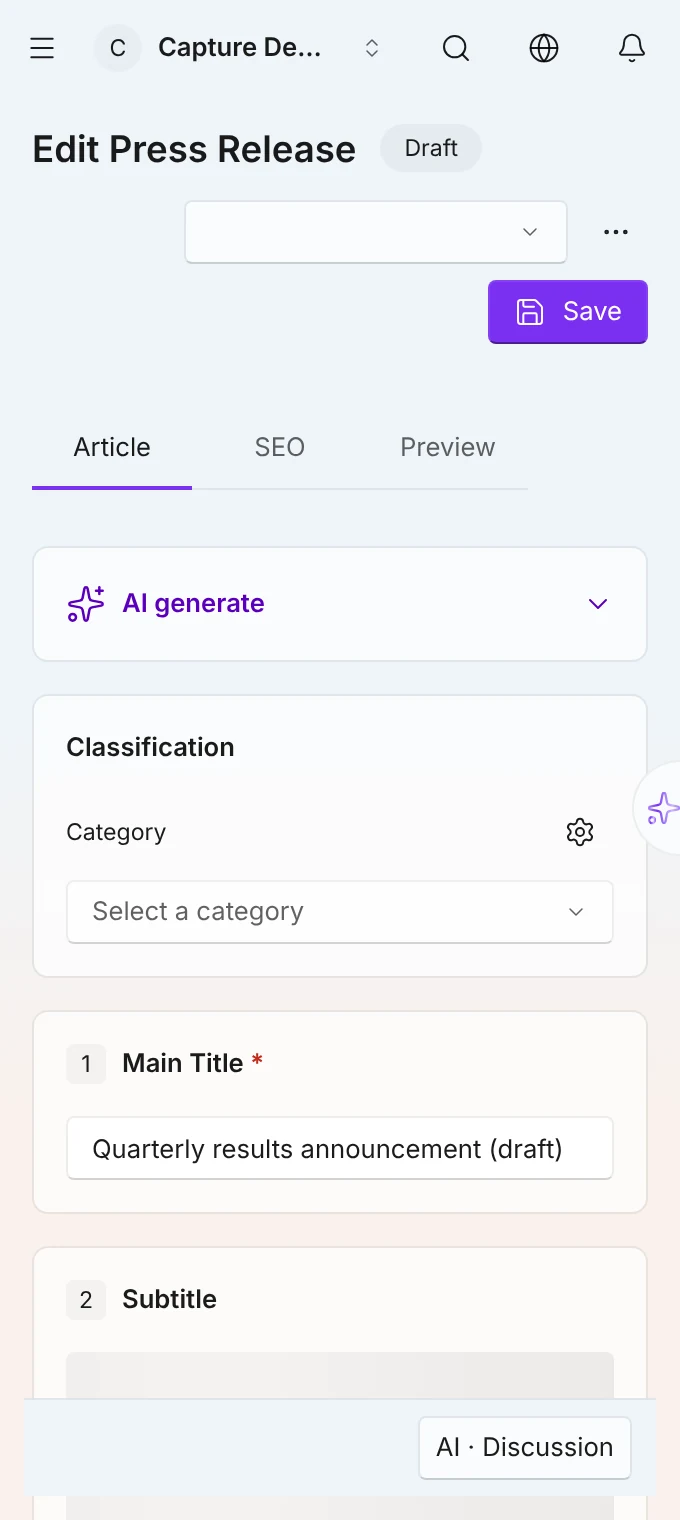
The new draft opens in the editor. - 6To bring a document into a draft you already have, open the draft in the editor, choose Import from Google Docs or Import from Notion in the ⋯ menu, and pick the document.
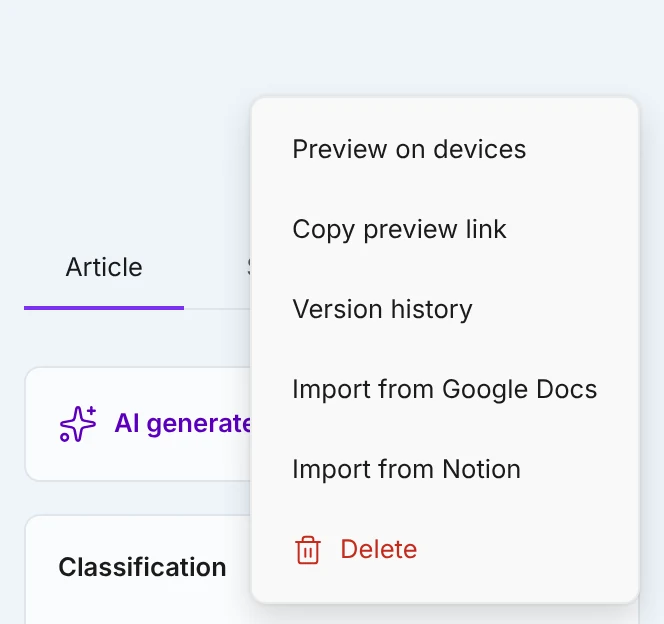
Import into a draft you already have. - 7Read what will be replaced and select Replace.
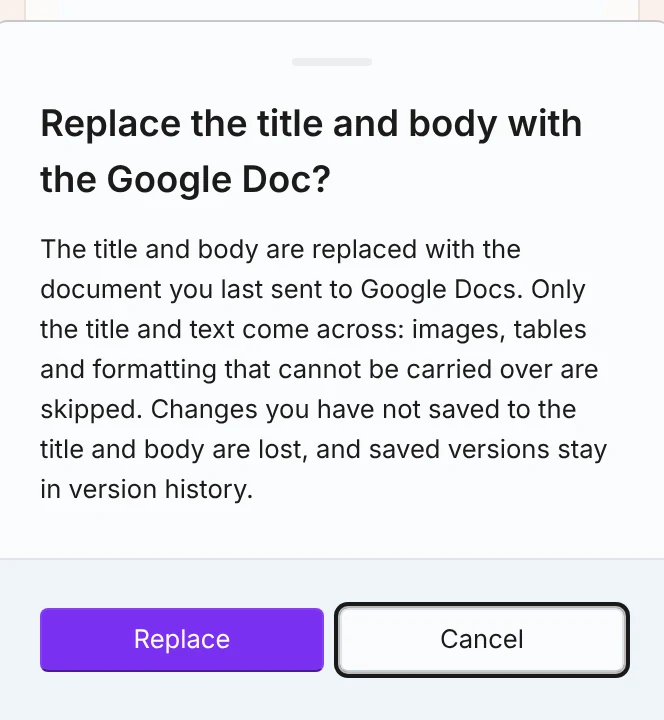
Saved versions stay in version history. - 8To send a press release out, select Send to on the press release page and choose Google Docs or Notion.
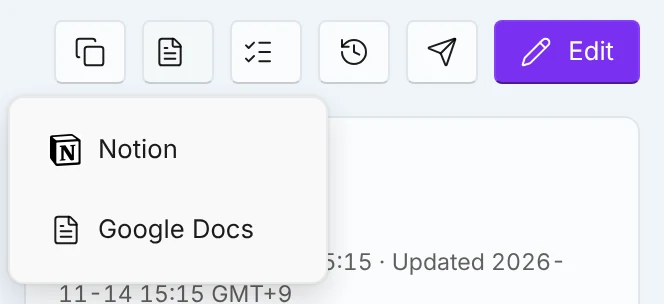
Send a press release to Google Docs or Notion. - 9To send a blog post out, choose Send to in the ⋯ menu of the blog editor and pick Google Docs or Notion.
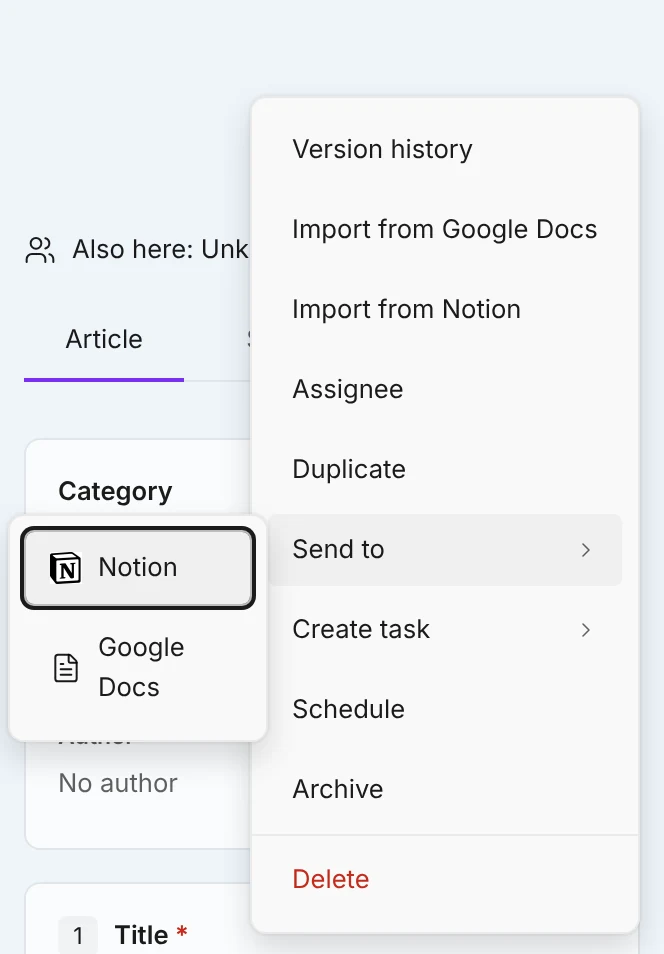
Send a blog post from the ⋯ menu.
In Notion, share the page with Marcomm AI first. Only shared pages appear in the list.
Only the title and text come across: headings, paragraphs, lists, quotes and links. Images, tables and formatting that cannot be carried over are skipped, and Marcomm tells you how many.
Size limits: Google Docs refuses to export a document larger than 10 MB, and the Notion integration imports pages of up to 2,000 blocks. Split a larger document and import the parts.
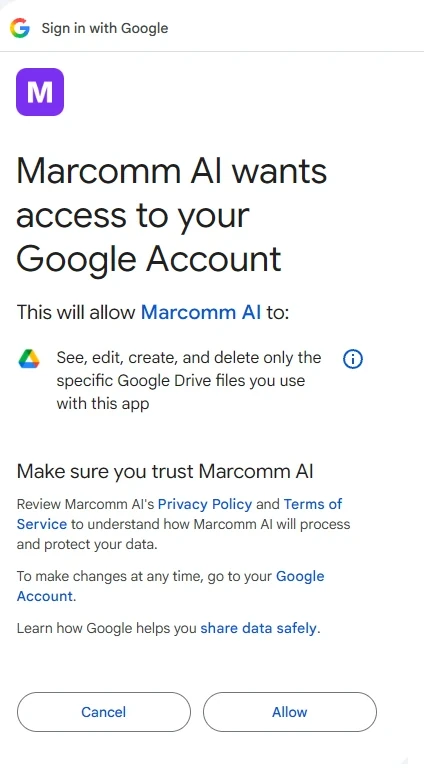
Marcomm AI can open only the Google files it created and the documents you pick, and only the Notion pages you share with it. Importing never changes the original, and the two sides are not kept in sync: import again to bring in later changes.
Replacing a draft you already have discards unsaved changes to its title and body. Saved versions stay in version history.
FAQs
You can import a Google Doc or a Notion page as a new draft or into a draft you already have, and send a draft out to either service. The title, text and images come across (images are saved to the Content Hub). Tables come across in blog posts only. Formatting that cannot be carried over is skipped. Google Docs refuses a document over 10 MB, and the Notion integration imports pages of up to 2,000 blocks.
Only pages you share with Marcomm AI appear. In Notion, add Marcomm AI to the page's connections, then search again in Marcomm.
Marcomm says whether Google Docs or the Notion integration rejected it, and nothing is imported. Split the document into smaller parts and import each one.