Connect Kakao Work to Marcomm
Get instant alerts, approval requests and the morning briefing from a Kakao Work bot, in a 1:1 chat or in a channel.
- 1In the Kakao Work admin console, open Bot → Develop bot and create a custom bot for Marcomm. It then appears under Workspace Bots.
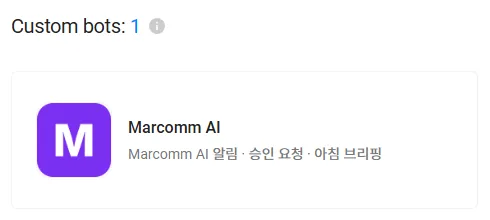
Create a custom bot. - 2Open the bot's basic information, select Show next to App Key and copy the key.
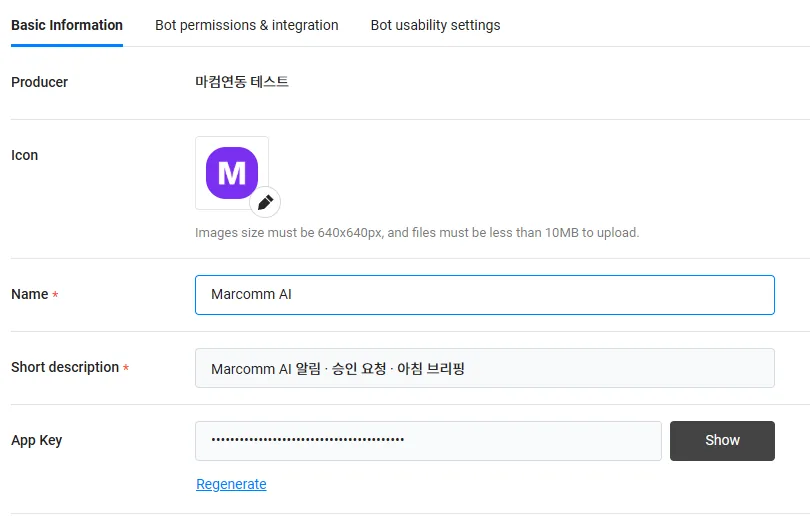
Select Show to reveal the App Key, then copy it. - 3To post in a channel, make the bot public and invite it to that channel in the Kakao Work app as a member. A channel the bot has not joined cannot be found.
- 4In Marcomm, go to Settings → Integrations → Kakao Work, enter a name, the recipient and the App Key, then select Add. The recipient is a member's email for a 1:1 chat, or #channel-name (or the numeric chat ID) for a channel.
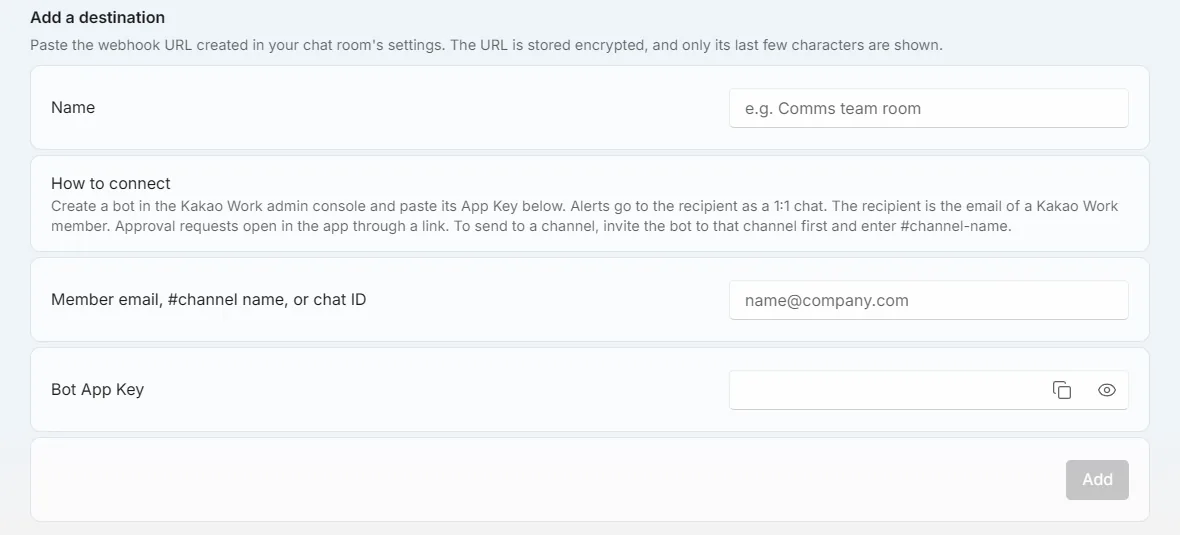
Settings → Integrations → Kakao Work. - 5Select Send a test message. It arrives from the bot in that chat.
If Marcomm says no chat with that name was found, invite the bot to the channel first. A channel name must match exactly.
Marcomm stores the App Key encrypted and never shows it again. It is deleted when you remove the destination or delete the workspace.
Kakao Work receives only what a message shows, such as an article headline, a press release title or the details of an approval request. Approval requests link back to Marcomm, where the decision is made.
FAQs
- Can I get messages in a 1:1 chat and in a channel?
- Yes. Add one destination with a member's email for the 1:1 chat and another with #channel-name for the channel.
- Why does a channel name give an error?
- The bot must be a member of the channel, and the name must match exactly. If two chats share a name, enter the numeric chat ID instead.