Connect Asana and create tasks
Connect Asana once, then create a task from a press release, blog post or press event, with a link back to the draft.
- 1In Marcomm, go to Settings → Integrations → Asana and select Connect.
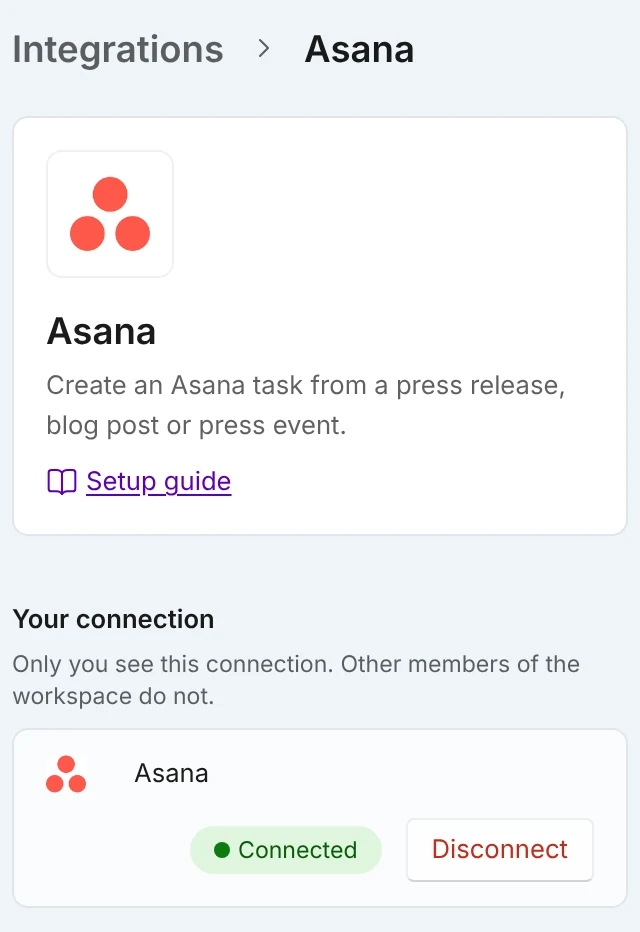
After you connect, your connection shows as Connected. Disconnect is on the same line. - 2Sign in to Asana and select Allow on its consent screen.
On the Asana consent screen, review the permissions and select Allow. - 3Open a press release or a blog post in the editor, or a press event, and select Create task in the menu at the top. Then choose Asana.
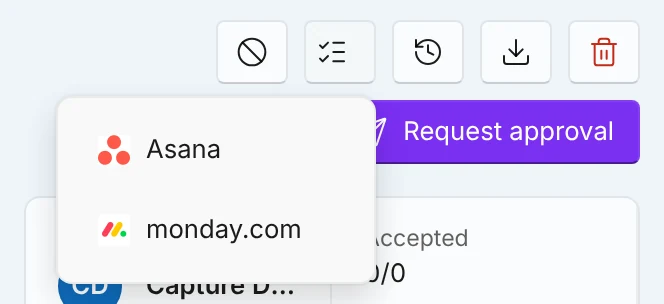
On a press release, a blog post or a press event, open Create task at the top and choose Asana. - 4Choose the project, and add a note if you like.
Choose the project and add a note if you like. Nothing is created until you select Create task. - 5Select Create task. When it is done, select Open in Asana to see it.
When the task is created, select Open in Asana to see it.
Marcomm saves a default project for your Asana connection, and the Create a task dialog selects it first. Set it in Settings → Integrations → Asana.
Each time you select Create task, Marcomm creates one Asana task with the title of the press release, blog post or press event, a link back to it in Marcomm, and its current status. Your note is added to the description.
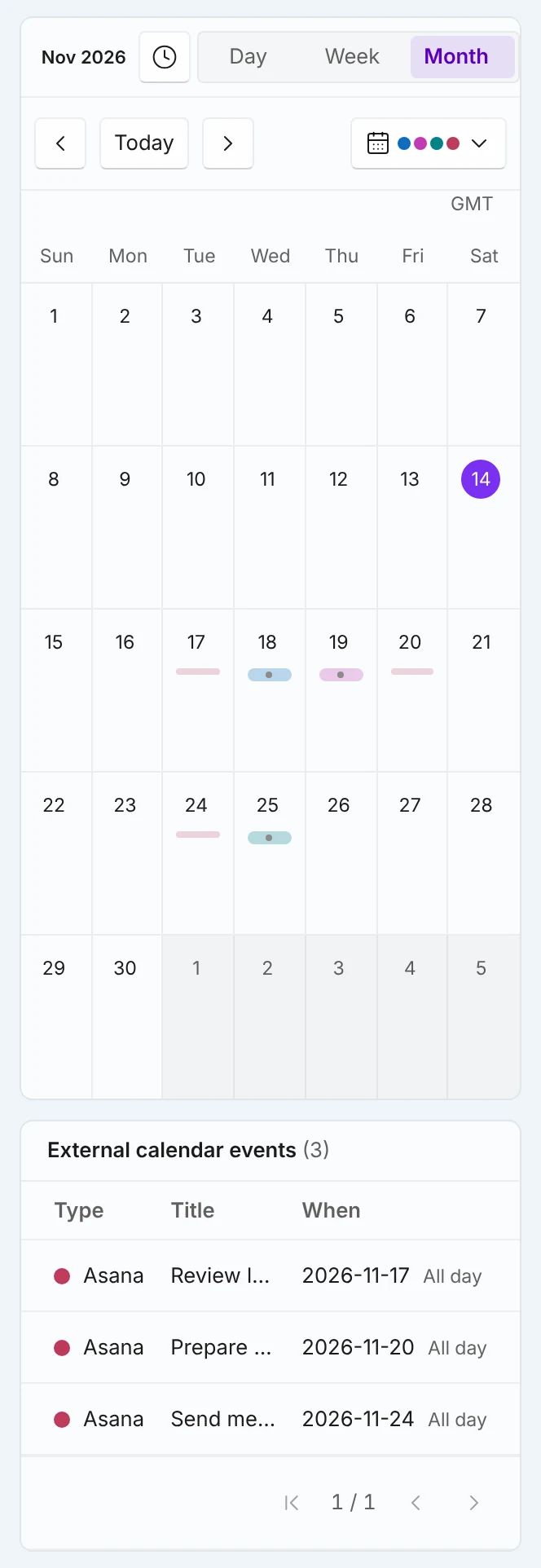
A task is a one-time copy, so changes made later on one side do not reach the other. Separately, tasks assigned to you that have a due date appear read-only in the Marcomm calendar. In Settings → Integrations → Asana you choose which projects show up there; until you change it, tasks from your projects appear. Marcomm never edits or deletes tasks you created yourself. The only tasks it changes are those it created through Send scheduled items automatically, and only their title and due date; it never deletes them or marks them complete. Asana's consent screen lists the broad permissions Asana defines, but Marcomm only does what is described here.
In Settings → Integrations → Asana, turn on Send scheduled items automatically and the scheduled press releases, blog posts and press events of that workspace are added to your default project as tasks with a due date, about every hour. If a title or date changes, Marcomm updates the same task. It never deletes a task or marks it complete. Dates are taken in UTC, so an item scheduled shortly after midnight local time can land on the previous day.
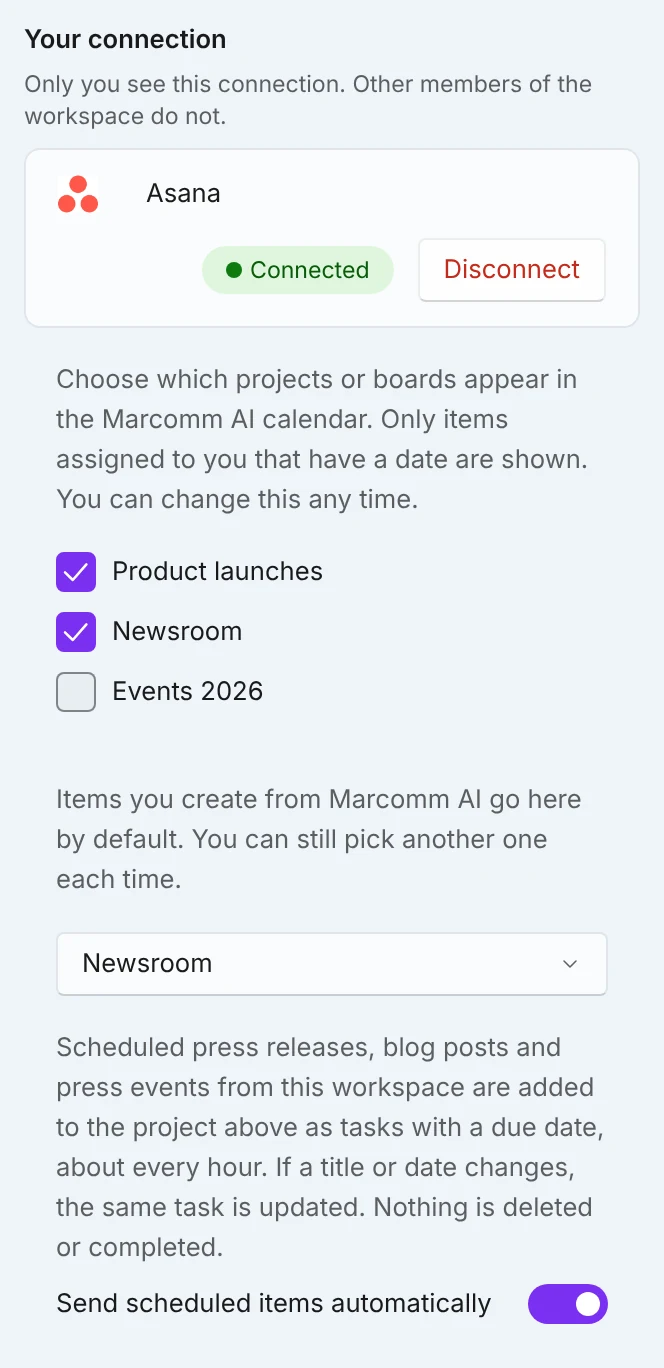
Each person connects their own account, and a connection is visible only to the person who made it. Tasks are created in your name. When you select Disconnect on the same Integrations page, the saved access token is deleted.
Asana has no approval buttons and no Marcomm AI tab. Decide on a press release, blog post or press event in Marcomm. The monday.com integration has its own guide, with approve and reject buttons in its item view.
FAQs
Marcomm creates an Asana task from a press release, blog post or press event, with the title, the current status and a link back to the draft. You can also have scheduled items sent to a default project about every hour, and see tasks assigned to you in the Marcomm calendar. Marcomm never edits, completes or deletes tasks you already have.
Marcomm may have lost access, or your account may have no project. If access was removed, the dialog says so; reconnect on Settings → Integrations → Asana. Marcomm lists up to 100 Asana projects per workspace.
No, not for the task you created. Its title, link and status are a one-time copy, and Marcomm does not read them back. Tasks assigned to you that have a due date do appear in the Marcomm calendar, and they are read fresh each time you open it.
Yes. Each time creates a new task. Marcomm does not check for ones you made before.
Select Disconnect on Settings → Integrations → Asana. The saved token is deleted. You can also remove Marcomm AI from the connected apps in Asana.