Connect Microsoft Teams to Marcomm
Get instant alerts, approval requests, approval results and the digest in a Microsoft Teams channel or chat through a Workflows webhook.
- 1In Microsoft Teams, open the channel or chat that should receive the messages, open its Workflows option and create a flow that posts a message when a webhook request is received. Menu names can differ between Teams versions.
- 2Name the flow, for example Marcomm AI, and finish creating it. Copy the URL that Teams shows for the flow.
- 3In Marcomm, go to Settings → Integrations → Microsoft Teams, enter a name, paste the URL under Webhook URL and select Add.
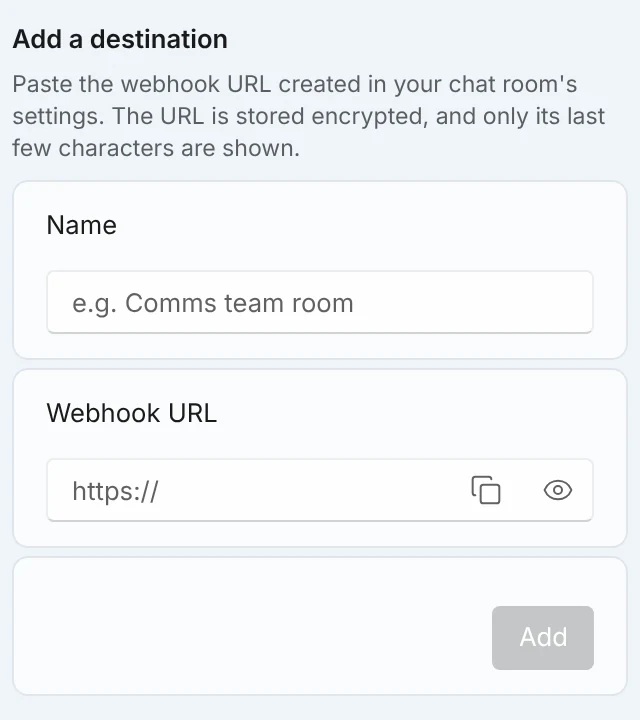
Settings → Integrations → Microsoft Teams. - 4Select Send a test message. It arrives in the channel or chat you chose.
- 5Use the switches to choose what each destination receives: Instant alerts, Approval requests and results and Digest.
Anyone who has the flow URL can post to that channel or chat, so paste it only into Marcomm.
Marcomm stores the URL encrypted and shows only its last few characters. It is deleted when you remove the destination or delete the workspace.
Teams receives only what a message shows, such as an article headline, a press release title or the details of an approval request and its result. Decisions are made in Marcomm: the message links back to the item.
In Teams, add the Marcomm AI app and send it any message. Your Teams account email must be identical to your Marcomm sign-in email. If they differ, the chat is not linked, no direct message is sent, and only the room you set as the destination receives the alert. On this integration's page in Marcomm, the Direct messages section shows your sign-in email so you can compare it.
FAQs
Marcomm sends instant alerts, approval requests, approval results and digests to the Teams channel you connect. You can also get one-to-one messages by saying anything to the Marcomm AI bot in Teams, and for those your Teams email has to match your Marcomm sign-in email. Approving and rejecting happen on the Marcomm screen that the link in the message opens.
No. The message links to the item in Marcomm, where the approver decides. The result is then posted to Teams as a new message.
Check that the flow is turned on in Teams and that the URL was copied completely. Marcomm shows the error it received from Teams next to the destination.
Copy the flow's current URL, add it in Marcomm as a new destination and remove the old one.