Show Outlook Calendar events in the Marcomm calendar
Connect your Microsoft account to see your own events next to scheduled press releases, blog posts and press events. It is read-only by default, and if you allow an optional permission, Marcomm AI can also add its scheduled items to your calendar automatically.
- 1In Marcomm, go to Settings → Integrations → Outlook Calendar and select Connect.
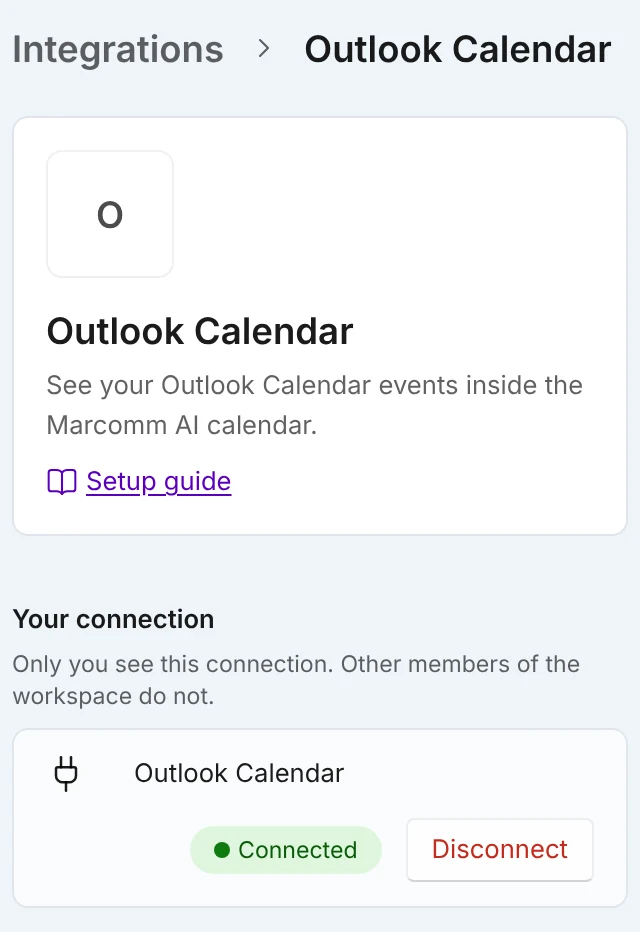
Select Connect. After you connect, choose the calendars to show on the same page. - 2Sign in to your Microsoft account and select Accept on the consent screen.
- 3Back in Marcomm, choose up to 10 calendars under Calendars to show. Until you change it, only your main calendar is shown.
- 4Open the Calendar view of press releases, blog posts or press events, and turn on Outlook Calendar under External calendars.
Only you see your events. Other members of the workspace do not see your connection or your calendar.
Marcomm AI asks for permission to read calendars, and optionally for permission to edit events. With a work or school account, calendars shared with you are included in reading. All Outlook and Teams calendar events apply. The edit permission is used only for Send scheduled items automatically, and if you turn it off on the consent screen only reading is connected. Marcomm AI reads events only while you look at the calendar and doesn't store them on its servers. Even when you allow editing and turn on automatic sending, it only adds Marcomm AI's scheduled items as events and updates those same events: it doesn't change or delete your other events and it invites nobody.
To stop, select Disconnect on the same page. Your events stop showing in the Marcomm calendar right away.
FAQs
No. A calendar connection belongs to the person who made it, and only that person sees the events.
The account may not have an Outlook mailbox. Connect a Microsoft account that has one. Calendars shared with you appear only on work or school accounts.