Connect Dooray! to Marcomm
Get instant alerts, approval requests and the morning briefing in a Dooray! messenger room, your own private room or a team room.
- 1In Dooray! messenger, open the room that should receive the messages. To receive them privately, create a topic room with only yourself in it.
- 2Open Members/Settings → Settings → Service integration, go to the Add service tab, type a bot name next to Incoming and select Add.
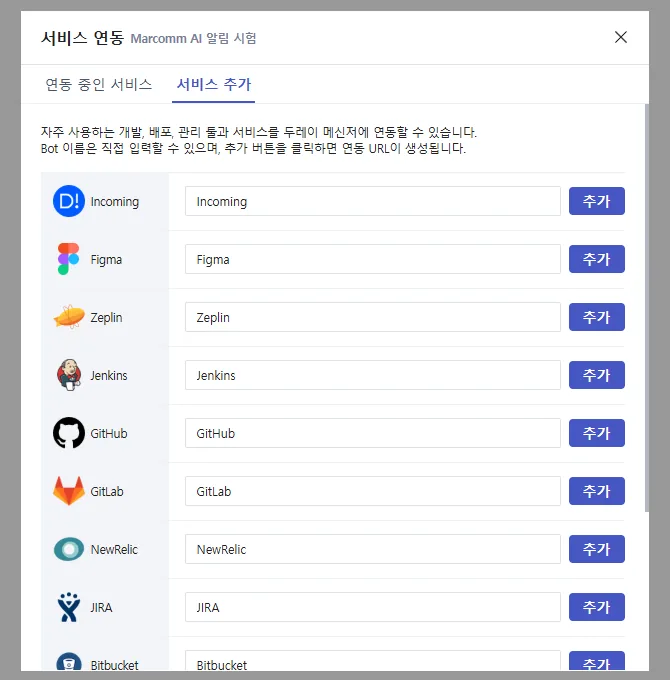
Add an Incoming service to the room. - 3On the Connected services tab, select Copy to copy the integration URL.
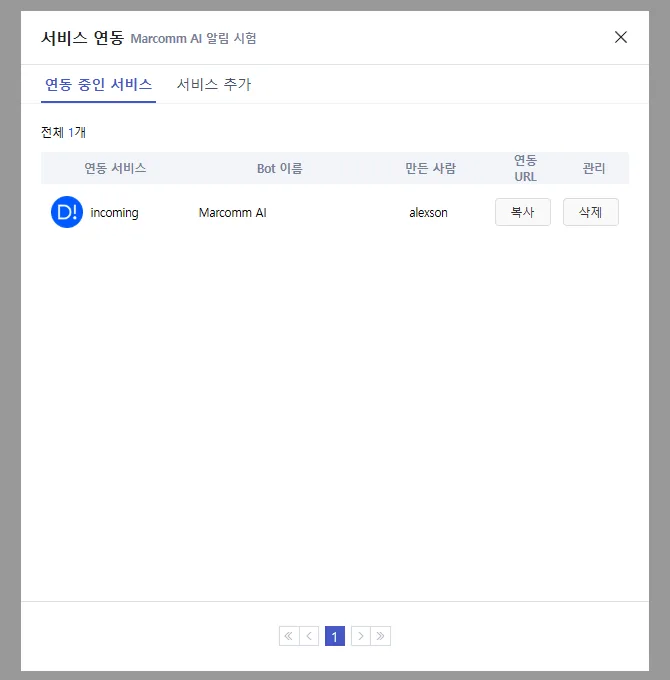
Copy the integration URL. Keep it private. - 4In Marcomm, go to Settings → Integrations → Dooray!, enter a name, paste the URL under Webhook URL and select Add.
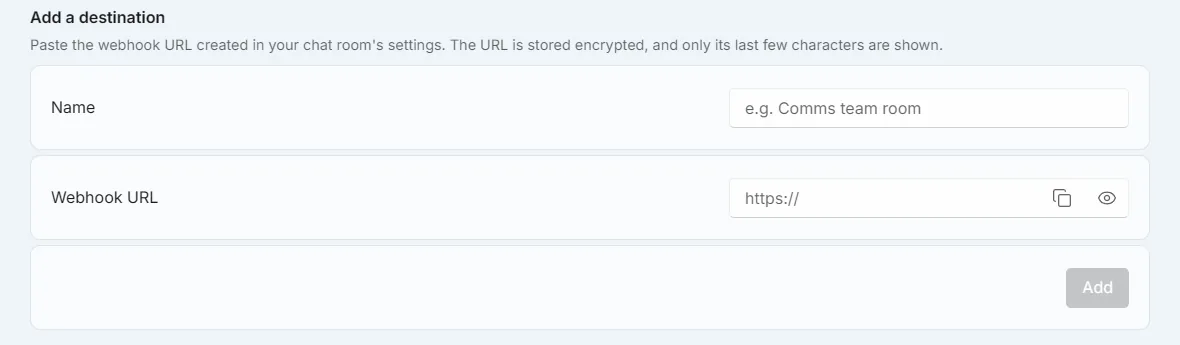
Settings → Integrations → Dooray!. - 5Select Send a test message. The message, and later the morning briefing, arrives in that room.
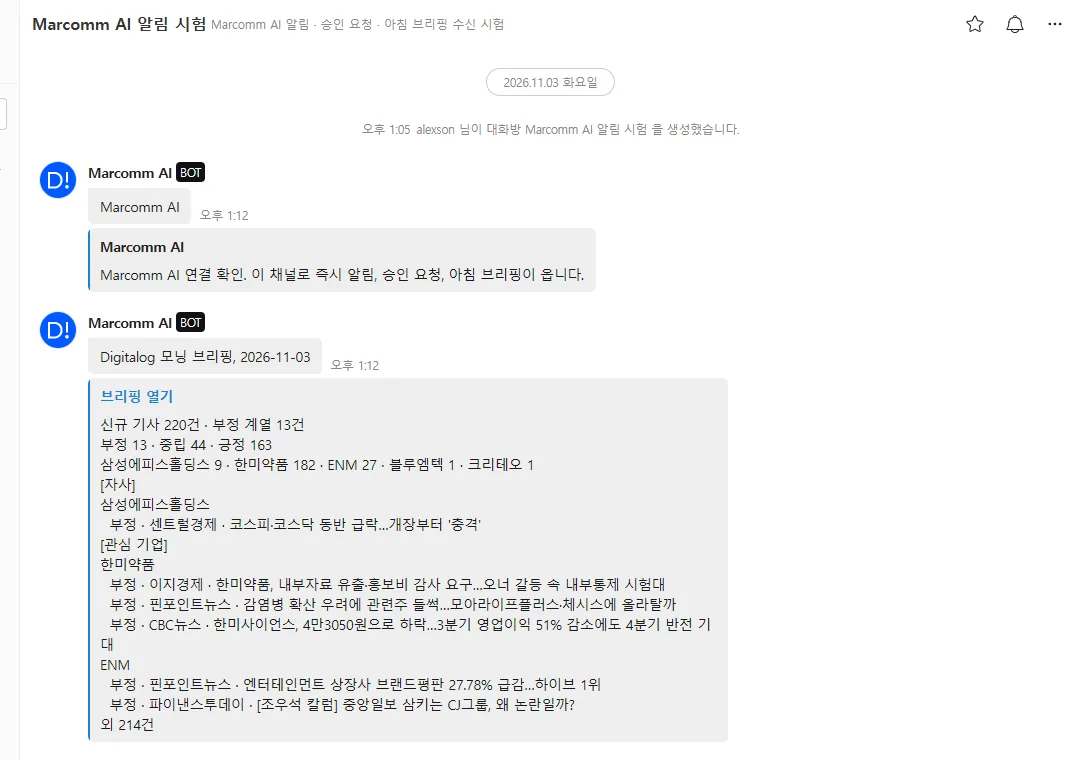
The test message and the briefing arrive in the room. - 6A webhook URL belongs to one room. To also reach a team room, repeat steps 1 to 4 in that room and add it as another destination.
- 7Use the switches to choose what each destination receives: Instant alerts, Approval requests and Morning briefing.
Anyone who has the integration URL can post to that room, so paste it only into Marcomm. If it leaks, delete the service in Dooray! and create a new one.
Marcomm stores the webhook URL encrypted and shows only its last few characters. It is deleted when you remove the destination or delete the workspace.
Dooray! receives only what a message shows, such as an article headline, a press release title or the details of an approval request. Approval requests link back to Marcomm, where the decision is made.
FAQs
- Can I receive messages in my own room instead of a team room?
- Yes. Create a topic room with only yourself in it, add the Incoming service there and use its URL as the destination.
- Can one workspace use several Dooray! rooms?
- Yes. Each room has its own URL. Add each as a destination and choose what it receives.